
Help — how to use Nexivey
The red numbers ①②③ in the pictures match the numbers in the text.
1Create an account and log in
You can see every product without an account; you need one to order, chat and track orders.
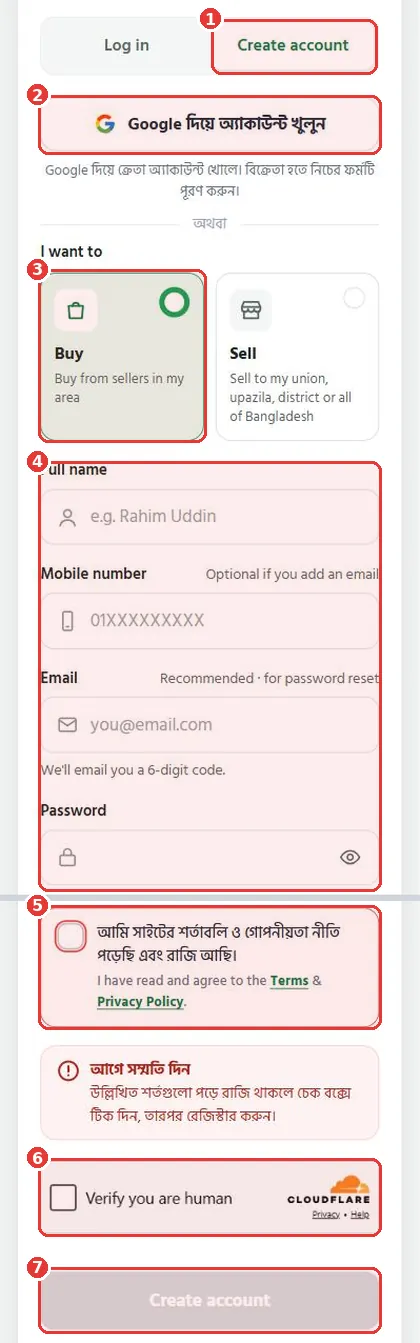
- ① On the login page, tap the "Create account" tab.
- ② Easiest: "Sign up with Google" — one tap opens your account and you can skip the steps below.
- ③ Check that "Buy" is selected.
- ④ Enter your name, mobile number or email (or both) and a password (at least 8 characters).
- ⑤ Tick the box "I have read the terms and privacy policy…" — without it the button stays grey and a red note shows.
- ⑥ Tick the "Verify you are human" box.
- ⑦ Tap "Create account". If a code is asked for, enter the code sent to your mobile / email (the email also has a one-tap link).
💡 Forgot your password? Make a new one from "Forgot password?" on the login page.
2Choose your area
With your area set, nearby sellers show first and the delivery charge is worked out correctly.
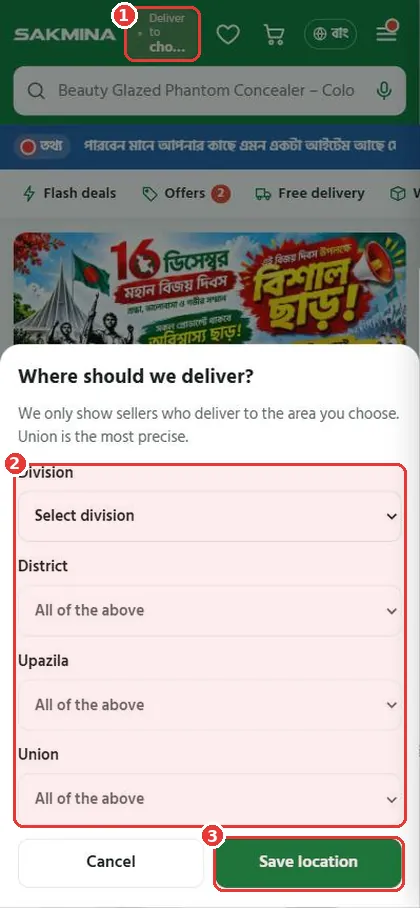
- ① Tap the "Deliver to" button at the top.
- ② Choose division → district → upazila → union (a union gives the best match).
- ③ Tap "Save location".
💡 You can see every product without an area; only "local" products ask for your area when you order.
3Finding products
Search, categories and offers are all on the home page.
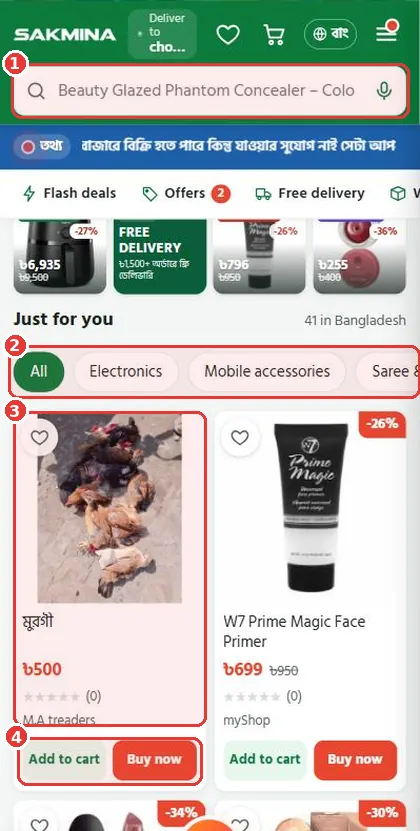
- ① Type the product name in the search box at the top (Bangla or English); tap 🎤 to search by voice.
- ② Pick a category to narrow the list (All, Electronics …). The "Categories" row moves by itself — touch it to stop.
- ③ Tap a product photo to open its full page.
- ④ Or tap "Add to cart" or "Buy now" right there.
💡 "Local" products are sold only in the seller's area; products marked "Countrywide" are sent all over Bangladesh.
4Product page and cart
Price, stock, seller and delivery details on one page.
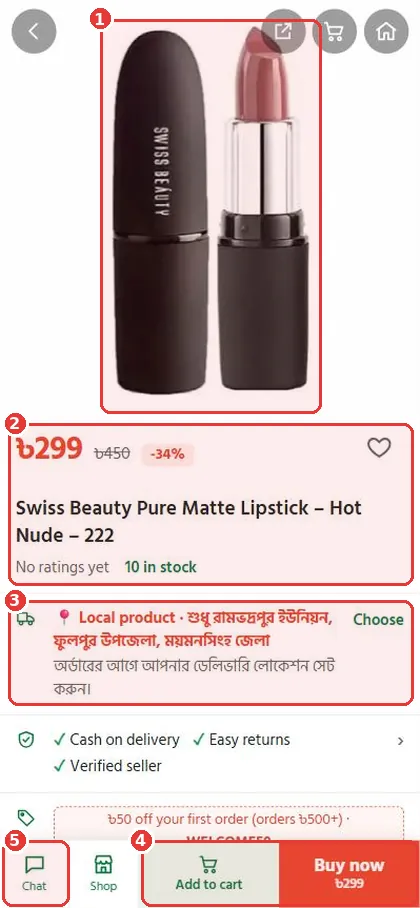
- ① Swipe the photos to see them all.
- ② Price, discount and how many are in stock. Choose size / colour here if there are any.
- ③ If it says "Local product", check which areas it is sent to; if your area is not set, tap "Choose".
- ④ "Add to cart" — buy later together; or "Buy now" — order straight away.
- ⑤ Questions? Tap "Chat" and write to the seller.
💡 If the seller of a local product does not deliver to your area, a 📍 warning shows before you order.
5Ordering (cart and checkout)
Buying starts from the 🛒 cart at the top.
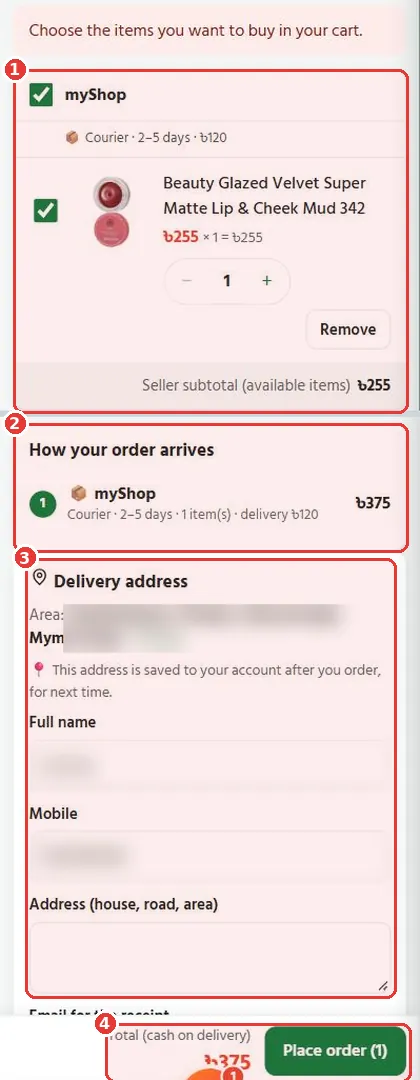
- ① In the cart, tick the products you want to buy now (grouped by shop), set the quantity, then tap "Checkout" at the bottom.
- ② "How your order arrives": how each shop's products come (courier or the seller's rider), in how many days and the delivery charge.
- ③ Delivery address: name, mobile, full address; if you like, an email for the receipt and a landmark.
- ④ Check the total and tap "Place order".
💡 Orders from the cart are paid cash on delivery. Coupons and online / advance payment (bKash, Nagad, card) are on the product page under "Buy now". Buying from several shops at once makes a separate order for each shop.
6Tracking orders and the delivery code
See the status of every order in "My orders".
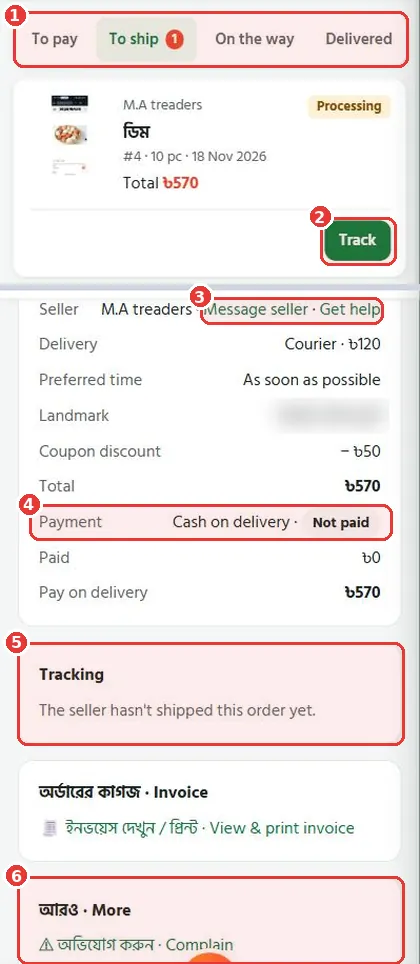
- ① Orders are grouped by step: To pay → To ship → On the way → Delivered.
- ② Tap "Track" to open the full order page.
- ③ "Message seller" — write to the seller; "Get help" — Nexivey support.
- ④ Payment status: how to pay and how much is left.
- ⑤ Tracking: where the parcel is now (with the courier's tracking).
- ⑥ A problem? Use "More" to make a complaint or ask for a return.
💡 When the seller's rider hands you the product, tell them the delivery code shown on the order page — only then is the delivery complete. Never give the code before you have the product. The invoice can be seen and printed from this page too.
7Chat with the seller
All your conversations in one place on the Messages page.
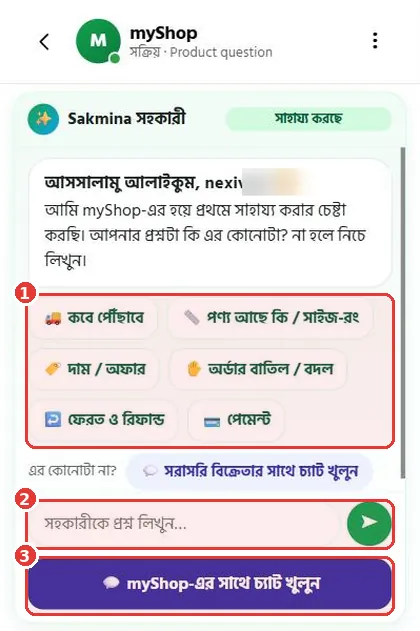
- ① When you message a seller, the Nexivey assistant answers first — delivery time, stock, price / offers, cancelling, returns, payment… tap your topic for an instant answer.
- ② You can also type your own question to the assistant.
- ③ No answer? Tap "Open chat with …" — then write to the seller directly; the assistant stays quiet.
💡 Always pay inside the site; Nexivey cannot help with money sent outside.
8My account
Your orders, messages and settings on one page (from the ☰ menu).
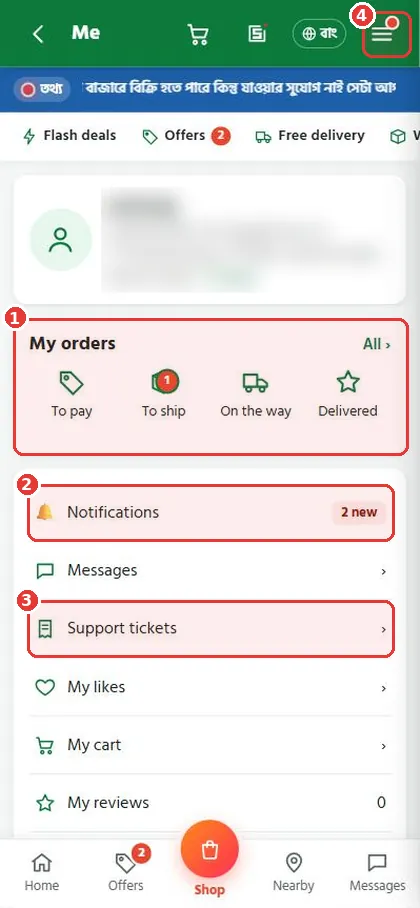
- ① My orders: which order is at which step — at a glance.
- ② Notifications: news about orders and offers.
- ③ Support tickets: write to support about any problem. Below it, "How to use" — this help page.
- ④ ☰ menu: profile, addresses, password, language (Bangla / English) and log out.
Need more help?
Tap "Support" on the Messages page, or open a support ticket.
Contact support